
To support a multi-monitor work-from-home (WFH) setup without shaking, sagging, or structural failure, you need a specialized standing desk with a dual-motor steel frame, a dynamic lifting capacity of at least 100 kilograms, and a dense, thick desktop surface. While a standard study table heavy duty enough for a single laptop or a few textbooks might suffice for casual tasks, a professional multi-monitor workstation demands advanced structural engineering to remain stable. Investing in the wrong frame or desktop material can lead to constant screen shaking during typing, or worse, a catastrophic collapse of expensive equipment.
Selecting the right heavy-duty standing desk requires looking past marketing buzzwords and evaluating concrete technical specifications. By analyzing motor configurations, frame steel thickness, and desktop material properties, you can build a stable, ergonomic workspace that withstands daily height transitions. This guide outlines the engineering realities of heavy-duty desks, details the best configurations for different monitor counts, and explains how to eliminate stability issues in typical Philippine home environments.
Why a Standard Study Table Heavy Duty Setup Fails Under Multi-Monitor Loads
A standard study table heavy duty frame is typically designed for static, centered loads. When you transition to a multi-monitor WFH setup, the structural demands change dramatically. A typical setup with two 27-inch monitors, heavy steel articulating monitor arms, a desktop computer, an uninterruptible power supply (UPS), and external audio gear can easily exceed 45 kilograms. This weight is rarely distributed evenly, placing immense localized stress on the back edge of the desk where the monitor mounts clamp down.
Products mentioned in this guide
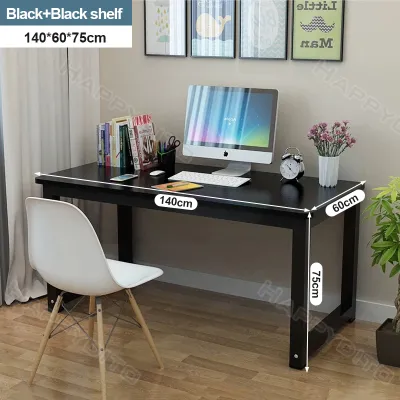
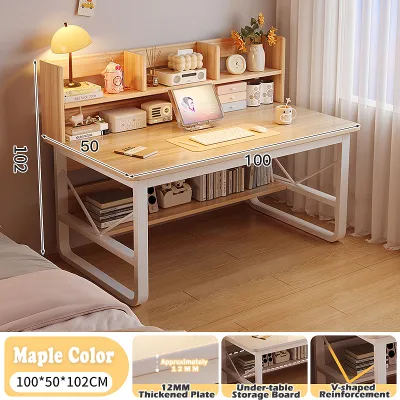
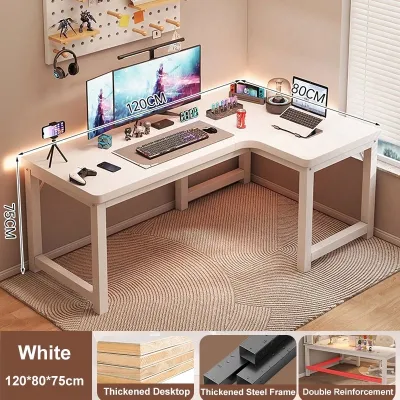
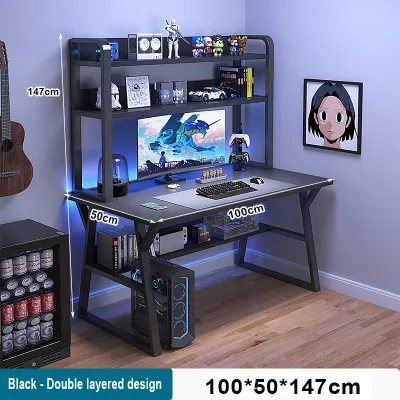
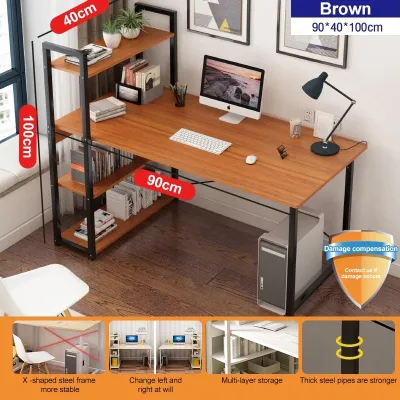
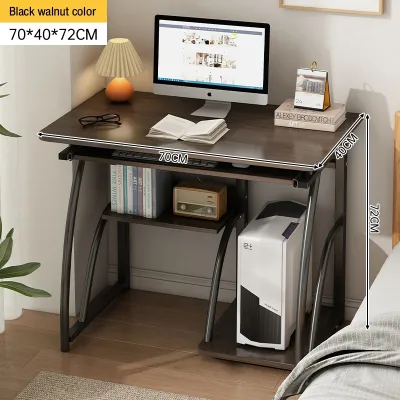
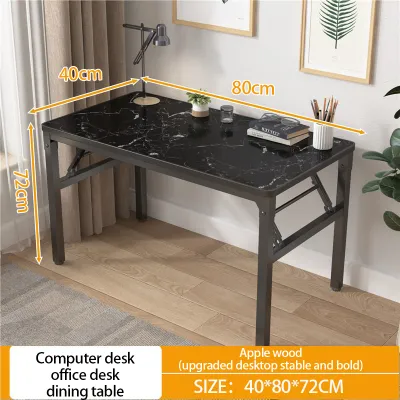
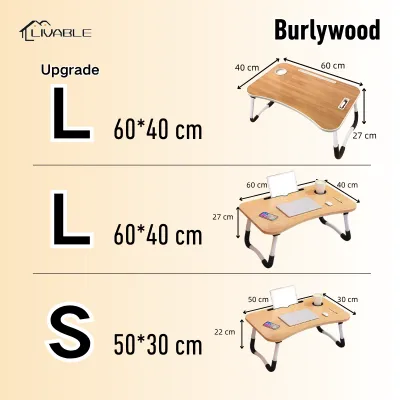
Prices are valid at publication and may change. Please refer to the product page for the latest price.
This uneven weight distribution introduces severe torsional forces that standard tables cannot handle. When a monitor arm holds screens extended forward, it acts as a lever, multiplying the downward force on the rear clamp. Under this constant twisting pressure, thin engineered wood desktops will bow, and lightweight steel or aluminum legs will flex. This structural deflection manifests as annoying screen bounce every time you type or rest your wrists on the desk edge.
Furthermore, the physics of height-adjustable desks worsens these stability issues at standing heights. As the desk columns extend to 100 centimeters or higher, the center of gravity rises significantly, amplifying any minor play or tolerance gaps in the leg joints. What felt like a minor wiggle at sitting height becomes a distracting, multi-millimeter sway when standing. Standard desks lack the heavy steel gauge and precise joint tolerances required to damp these vibrations.
Finally, there is a critical distinction between static weight capacity and dynamic lifting capacity. A basic study table might support 80 kilograms when stationary, but its motor or manual crank system may struggle or burn out when trying to lift that same load. Dynamic lifting capacity refers to the weight the motorized columns can actively raise and lower without overheating. For a reliable multi-monitor setup, you must prioritize a high dynamic rating to protect the motorized drive system from premature wear.
Key Specs to Verify Before Buying a Heavy-Duty Standing Desk
To ensure your standing desk can handle a heavy multi-monitor setup, you must verify several key technical specifications before making a purchase. Avoid relying on generic product descriptions and instead look for verified manufacturer manuals, technical data sheets, or product labels.

Verify Dynamic Lifting Capacity vs. Static Load Limits
Always check the product documentation for the explicit dynamic lifting capacity. For a multi-monitor setup, look for a minimum dynamic capacity of 100 to 125 kilograms. If a product listing only states a single “weight limit” without specifying if it is static or dynamic, assume it is static and proceed with caution. A high dynamic limit ensures the motors can smoothly transition your heavy gear without straining, stuttering, or safety-tripping the control box.
Compare Single-Motor and Dual-Motor Systems
Avoid single-motor standing desks for heavy-duty applications. Single-motor systems use a single motor housed in one leg, connected to the opposite leg via a rotating hex rod. This design is prone to lag, uneven lifting, and mechanical failure when lifting asymmetric loads. In contrast, a dual-motor system features an independent motor integrated into each leg column. These motors are synchronized electronically by a central control box, providing a much higher lifting capacity, quieter operation, and smoother transitions even when one side of the desk is heavier than the other.
Evaluate Leg Stage and Frame Construction
Examine the leg column design, prioritizing three-stage telescoping legs over two-stage legs. Three-stage legs feature three overlapping steel sections, which allow for a wider height range and provide greater overlap between the segments at high extensions, significantly reducing lateral wobble. Additionally, check the steel thickness of the frame; heavy-duty frames should use at least 2.0 mm to 2.5 mm gauge steel. Look for designs that feature a thick steel top bracket and a structural crossbar running horizontally beneath the desktop to prevent front-to-back swaying.
Assess Desktop Material and Moisture Resistance
Do not assume a material is durable simply because of its name. In the humid tropical climate of the Philippines, desktop material selection and finish are critical. High-density fiberboard (HDF) and medium-density fiberboard (MDF) are common, but they must be checked for complete PVC edge-banding and a polyurethane or laminate finish on all sides, including the underside. Unsealed engineered wood will absorb moisture from the air, causing the desktop to swell, warp, and lose structural integrity under heavy monitor clamps. Solid wood options, such as local acacia or mahogany, are highly durable but must be thoroughly kiln-dried and sealed with a moisture-resistant topcoat to prevent cracking and warping in seasonal humidity.
Recommended Heavy-Duty Desk Configurations by Monitor Count
Your choice of desk configuration should match the number of monitors you plan to mount. Different layouts distribute weight differently and require specific frame geometries to maintain stability.
Dual-Motor Straight Desks for Dual Monitor Arms
For a standard setup consisting of two 24-inch to 27-inch monitors, a straight dual-motor standing desk is highly effective. To ensure comfortable viewing distances, select a desktop with a depth of at least 70 to 80 centimeters. If the desk is too shallow, mounting the monitors on articulating arms will position the screens too close to your eyes, causing strain, or force the arms to protrude past the back of the desk, preventing you from placing the desk flush against a wall.
A straight frame equipped with a heavy-duty under-desk support beam offers excellent front-to-back stability. This configuration easily accommodates a dual-monitor clamp mount on the rear edge, provided the desktop is at least 25 mm thick. The primary limitation of a straight desk is lateral space; if you plan to add large desktop studio monitors, a secondary laptop, or external mixing boards, a standard 140 cm to 160 cm straight desk can quickly become overcrowded, forcing you to compromise on peripheral placement.
L-Shaped Heavy-Duty Desks for Triple Monitors
If your WFH setup requires three monitors or an ultra-wide screen paired with dual portrait monitors, a straight desk may suffer from lateral instability or lack the necessary width. An L-shaped heavy-duty standing desk is the ideal solution. These configurations utilize a three-leg frame design, with a dedicated motor in each of the three leg columns. This third leg is critical because it supports the corner joint where the two desktop sections meet, preventing sagging at the seam.
L-shaped desks excel at weight distribution. By wrapping around your seating position, they allow you to place side monitors along a perpendicular axis, bringing the weight closer to the desk’s turning axis and reducing the lever-arm effect that causes long straight desks to wobble. However, these desks require significant floor space. Before purchasing, carefully measure your room’s layout, ensuring the return side does not block walkways, doorways, or window access. Additionally, verify your home’s doorway and elevator lift dimensions; L-shaped frames and desktops are shipped in large, heavy boxes that can be difficult to maneuver through tight residential spaces.
Heavy-Duty Frame-Only Kits for Custom Surfaces
For professionals with highly specialized requirements, such as heavy audio-visual gear, oversized PC cases, or a preference for premium local timber, buying a heavy-duty frame-only kit is an excellent pathway. This approach allows you to source a custom-sized solid wood desktop from a local woodworker. You can specify an extra-deep surface, such as 90 centimeters, which provides ample space for deep keyboard trays, synthesizers, or drawing tablets while keeping the monitors at an ergonomic distance.
When pairing a custom desktop with a frame-only kit, you must verify compatibility. Ensure the wood is at least 25 mm to 30 mm thick to prevent bowing, and check that the wood species can handle the pilot holes needed for mounting. You must pre-drill all mounting holes to prevent the wood from splitting during assembly. Furthermore, check the frame’s adjustable telescoping center beam; the frame should extend wide enough so that the top mounting brackets sit within 15 to 20 centimeters of the desktop’s outer edges, ensuring the heavy ends of the custom wood top are fully supported.
How to Eliminate Wobble at Maximum Standing Height
Even the most robust heavy-duty standing desk can experience wobble if it is not installed and maintained correctly. Follow these practical steps to ensure your desk remains rock-solid when fully extended.
First, address the flooring. Uneven floors, whether tile, concrete, or wood parquet, are the most common cause of standing desk wobble. Most heavy-duty frames include adjustable leveling feet (glides) at the bottom of the steel feet. Do not simply screw them all the way in. Use a bubble level tool or a leveling app on your smartphone placed on the desktop. Adjust each leveling foot individually until the desk is perfectly level both front-to-back and side-to-side. Ensure all feet make firm, high-pressure contact with the floor.
Second, establish a routine hardware maintenance schedule. Motorized desks undergo constant micro-vibrations from daily typing, mouse movements, and motor transitions. These vibrations can gradually loosen the assembly hardware. After the first two weeks of assembling your desk, use the provided Allen keys or a torque wrench to re-tighten every frame bolt, leg-to-foot joint, and desktop mounting screw. Repeat this hardware check every six months to maintain structural rigidity.
Third, optimize your load distribution. To minimize the physical forces that cause shaking, keep the center of gravity as low and centered as possible. Place exceptionally heavy peripherals, such as an uninterruptible power supply (UPS), external storage arrays, or a full-tower PC chassis, directly over or as close as possible to the vertical leg columns. Avoid placing these heavy items in the middle of the desktop span, as this increases the bending moment on both the desktop and the telescoping frame.
Finally, perform a safety and stability check before mounting your expensive monitors. Raise the empty desk to your exact standing height. Gently push the desk from the front to back, then side to side, using moderate force. Observe the joints and columns for any loose play or rattling. If you detect movement, locate the source—whether it is a loose leveling foot, an untightened frame bolt, or an uneven floor—and correct it before loading your screens.
Space and Cable Planning for Heavy WFH Setups
Managing a heavy-duty multi-monitor setup involves more than just structural support; you must also plan for physical clearances and safe cable routing to prevent damage during height adjustments.
Before placing your desk, measure the vertical clearance of your workspace. A standing desk raised to its maximum height can easily collide with wall-mounted bookshelves, picture frames, window sills, or low-hanging ceiling fans. Ensure there is a completely clear vertical path for both the desktop and the top edges of your monitors. If your desk controller features an anti-collision sensitivity setting, configure it to its highest level to ensure the motors stop immediately if they encounter an unexpected obstruction.
Cable management is another critical factor for heavy setups. Do not let heavy power strips, power bricks, or UPS units hang freely from the back of your monitors or the desk surface. The weight of these items can strain your ports and pull on cables during transitions. Mount a heavy-duty steel cable tray or wire basket directly to the underside of your desktop. Place all power distribution blocks and heavy power bricks inside this tray, leaving only a single, main power cable to run down to the wall outlet.
When routing cables from the desktop to the floor, you must leave a generous “cable spine” or slack loop. Never secure your cables tightly when the desk is in a sitting position. Instead, raise the desk to its absolute maximum standing height, and only then organize and bundle the cables using hook-and-loop straps or cable sleeves. This ensures that when the desk rises, the cables have enough slack to flex naturally without tension, preventing snapped ports, damaged cable connectors, or monitors being pulled off their mounts.
Frequently Asked Questions (FAQ)
Can I clamp a heavy monitor arm to any desk surface?
No, you cannot clamp a heavy monitor arm to any desk surface. Hollow-core desktops, which feature a cardboard honeycomb interior sandwiched between thin sheets of fiberboard, will collapse or crush under the concentrated clamping pressure of a heavy-duty monitor arm. Thin particle board desktops under 18 mm thick are also prone to cracking or bending. If you are using an engineered wood desktop, you should use a steel or solid wood reinforcement plate on both the top and bottom of the desktop at the clamp site to distribute the load safely across a larger surface area.
Does a heavier desk frame consume more electricity?
No, a heavier desk frame does not consume a significant amount of electricity. Heavy-duty dual-motor desk frames only draw substantial power, typically between 150 to 300 watts, during the active 10 to 15 seconds they are transitioning between sitting and standing heights. When the desk is stationary, the control box enters a low-power standby mode that consumes less than 1 watt. This standby power draw is negligible and will not make a noticeable impact on your monthly household electricity bill.
Community discussion
Share your experience or ask a question. Comments are reviewed before publication.