
Organizing a corner desk requires a different approach than managing a standard rectangular workstation. The unique L-shaped configuration offers a generous amount of surface area, but it also introduces complex angles, a deep corner vertex that is difficult to reach, and distinct challenges for routing cables out of sight. Without a deliberate plan, the intersection where the two desk wings meet easily becomes a chaotic tangle of power cords, charger cables, and misplaced office accessories.
Achieving a clean, functional corner desk setup relies on understanding how to utilize the distinct zones of your workspace while routing cables along the structural frame of the desk. By systematically mapping your power sources, securing cables beneath the desktop, and dividing your surface area into dedicated functional zones, you can transform a cluttered corner into an ergonomic and highly productive workspace. This guide details the step-by-step process to manage your cables and arrange your accessories for a balanced, clutter-free environment.
Assessing Your L-Shaped Layout and Gathering Tools
Before moving any equipment or unplugging a single cable, you must evaluate the physical dimensions and structural limitations of your corner desk. Begin by measuring the length and depth of both the left and right desk wings. These measurements dictate how much usable surface area you have for accessories and help you determine the clearance available underneath the desk for mounting trays or brackets. It is equally important to check the thickness of your desktop and the material composition; manufactured wood, tempered glass, and solid timber all have different load capacities and require different mounting methods for cable management accessories.
Products mentioned in this guide
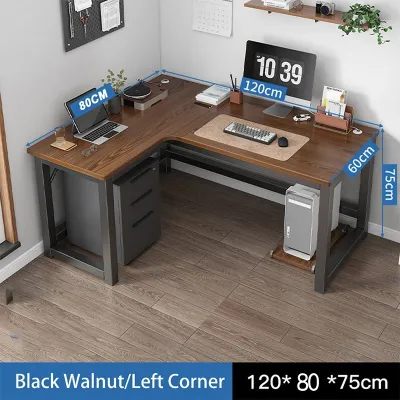
65 Lazada user ratings
BUYER BEWARE there were missing parts that made it difficult to build. instruction was difficult to understand, but we managed. some holes d…Read full reviewShow less
BUYER BEWARE there were missing parts that made it difficult to build. instruction was difficult to understand, but we managed. some holes did not align, particularly underneath the wood to be screwed to the table frame so we didnt put some of the screws anymore. we were missing a couple of screw sizes as well, so we weren't able to put up one of the supporting structure/bar below. same goes for the supporting angle bar, we're missing one piece so we no longer attached it. there were some minor defects on the wood itself, at least its usable i guess. the packaging was flimsy and haphazardly done. kung di ko lang kailangan yung table agad I would've returned this in its entirety. honestly, just buy somewhere else
A solid wood tabletop with thick angle iron legs, sturdy. The quality is beyond doubt, the nuts are all excellent
Spacious surface area for work,
bali po ang table
Prices are valid at publication and may change. Please refer to the product page for the latest price.
Next, examine the area surrounding the desk. Identify the location of all wall outlets, extension cords, and baseboards. The distance from the corner vertex—the point where the two wings meet—to the nearest power source determines how long your main power cables and surge protectors need to be. If your desk sits flush against a wall, look for built-in grommet holes or check if there is a sufficient gap between the desk edge and the wall to pass cables through. If the desk sits tight against the wall without a gap, you may need to plan your routing along the outer edges or utilize existing cutouts.
With your measurements in hand, gather the necessary tools and accessories to secure your wiring. A basic cable management toolkit should include adjustable hook-and-loop (velcro) straps, zip ties, adhesive cable clips, and under-desk cable trays or J-channels. If you plan to mount heavy power strips or metal trays under the desk, verify the weight capacity of the desk edges and the underside of the desktop. For delicate surfaces or glass desks, avoid drilling and instead opt for high-quality clamp-on trays or adhesive-backed organizers that do not compromise the structural integrity of the furniture.
Step-by-Step Cable Routing for Corner Desks
To establish an organized cable system, you must start with a clean slate. Begin by shutting down all electronic devices, unplugging every power and data cable, and laying them out clearly on the floor. As you unplug each cord, use a piece of masking tape or a cable label to mark both ends with the name of the corresponding device. This simple step prevents confusion later when you are tracing wires under the desk and makes future troubleshooting or device replacements significantly easier.

Once everything is unplugged, group your cables by their primary function and destination. For example, bundle your monitor power and display cables together, keep your keyboard and mouse wires in a separate group, and gather your phone chargers and auxiliary power cords into another. Grouping cables prevents them from crossing over one another, which is the primary cause of unsightly tangles and signal interference. With your cables sorted, you can plan the main trunk line—the primary pathway where the majority of your wires will travel from your desktop devices down to your main power source.
Managing the Corner Vertex and Wall Gaps
The inner corner vertex of an L-shaped desk is the most common area for cable clutter to accumulate because it sits directly behind the primary viewing angle. To manage this zone effectively, position your main power strip or surge protector on the underside of the desk near this vertex. Mounting the power strip off the floor keeps it clean and dry, which is particularly important in tropical regions where floor-level humidity or occasional moisture can pose safety risks. Ensure the power strip is mounted in a position that allows for adequate ventilation to prevent heat buildup from multiple power adapters.
If your corner desk consists of two separate pieces joined together, there is often a visible seam or a small gap at the vertex. You can bridge this gap by using flexible cable sleeves or split-sleeved neoprene wraps. These sleeves hold multiple cables in a single, neat tube, allowing them to transition smoothly from one side of the desk to the other without hanging loose. When routing cables across these joints, avoid pulling the wires taut. Leaving a small amount of slack ensures that any natural shifting of the desk sections does not pinch, stretch, or damage the internal copper wiring of your cords.
Routing Along the Desk Wings and Edges
With the central vertex organized, you can focus on routing cables along the left and right wings of the desk. Install under-desk cable trays or J-channels along the back edge of each wing to act as the primary highway for your wires. These trays cradle the bulk of your power bricks and excess cable lengths, keeping them completely hidden from view. When choosing trays, ensure they are rated to support the weight of your specific power bricks and are mounted securely using the manufacturer’s recommended hardware or heavy-duty clamps.
To guide smaller peripheral cables—such as those for your mouse, keyboard, or desktop speakers—from the surface to the under-desk trays, place adhesive cable clips along the back edge of the desktop. In warm, humid climates like the Philippines, standard adhesive backings on plastic clips can degrade over time, causing them to peel off. To prevent this, clean the desk surface thoroughly with rubbing alcohol before applying the adhesive, or choose screw-in clips and mechanical fasteners if your desk material allows.
Always leave adequate slack in the cables near your monitors and computer tower. If you use a articulating monitor arm, route the cables through the arm’s built-in channels, leaving enough loose wire at the pivot points to allow the screen to rotate, tilt, and extend fully without pulling on the ports. A tight cable can damage the input ports on your monitor or graphics card, leading to costly repairs.
Zoning Accessories for Each Desk Wing
An organized corner desk relies on a logical distribution of accessories across its L-shaped surface. To maximize productivity and maintain physical comfort, divide your desk into three distinct zones: the primary work zone, the secondary task zone, and the corner vertex zone. The primary work zone should be positioned directly in front of your main seating position, typically along the wider wing of the desk. This area is reserved for your primary monitor, keyboard, and mouse, ensuring you can work with a neutral posture, relaxed shoulders, and your eyes aligned with the top third of the screen.
Assign the secondary wing of the desk for auxiliary tasks and storage. This side is ideal for placing items you use frequently but do not need constantly in your direct line of sight, such as a printer, document trays, a tablet stand, or a dedicated charging station for your mobile devices. By keeping these items on the secondary wing, you preserve the clutter-free space of your primary work area, allowing you to transition smoothly from computer work to writing, reading, or reviewing physical documents.
Keep the immediate corner vertex clear of bulky, free-standing accessories. Because the vertex is the deepest part of the desk, placing items there makes them difficult to reach and blocks your natural line of sight. Instead, use this deep space to mount a dual-monitor arm or a single clamp-on monitor stand. Elevating your screens off the desktop frees up valuable surface real estate directly underneath them, which you can use for low-profile items like a sleek desk clock or a small decorative plant.
To reinforce these functional boundaries visually, place desk mats or blotters in your primary and secondary zones. These mats act as subtle visual anchors that define where your work tools belong, helping you resist the temptation to let items drift across the desk. They also protect the desk finish from scratches, moisture from cold drinks, and daily wear.
Maintaining an Accessible and Clutter-Free Corner
Maintaining an organized corner desk is an ongoing practice rather than a one-time task. Over time, the weight of cables and power adapters can cause adhesive clips to slip or under-desk trays to sag. Periodically inspect the underside of your desk to ensure all fasteners remain secure and that no cables have slipped out of their designated channels. If you notice sagging, reinforce the area with additional hook-and-loop straps or replace degraded adhesives with high-bond mounting tape.
Dust accumulation is a common issue in the deep, hard-to-reach corners of L-shaped desks. Because electronic components generate heat, dust buildup around power strips and adapters can restrict airflow and create a potential safety hazard. Make it a habit to dust the corner vertex, monitor mounts, and under-desk cable trays regularly using a microfiber cloth or a can of compressed air. Keeping these areas clean ensures your electronics run cool and extends their operational lifespan.
Whenever you introduce a new device to your workspace, resist the urge to simply drape the new power cord over the edge of the desk. Take the extra five minutes to route the new cable through your established trunk lines, securing it with your existing straps and clips. If you find that your current cable trays are full, re-evaluate your setup and bundle older, unused cables to free up space rather than overloading the trays.
Finally, always consult your desk manufacturer’s guidelines before making permanent modifications to your furniture. Drilling holes for grommets or screwing heavy-duty cable trays into thin hollow-core desktops can cause irreversible structural damage or split the laminate finish. If you are unsure about the material limits of your desk, utilize non-invasive, clamp-on cable management solutions that provide excellent stability without risking damage to your workspace.

Community discussion
Share your experience or ask a question. Comments are reviewed before publication.