
Quick Answer: Which Desk Type Works Best?
Choosing the right computer table with printer setup depends on your daily workflow, available floor space, and how often you print. For most permanent dual-device setups, an L-shaped desk is the most efficient option because it provides two distinct, spacious work surfaces while keeping both your computer and printer within arm’s reach.
If you prioritize physical movement and ergonomics, a motorized standing desk is an excellent alternative, provided you select a deep surface that can accommodate the printer’s footprint and handle its operational vibrations. Foldable desks are best reserved for temporary, light-duty workspaces where a compact laptop and a lightweight printer are only brought out occasionally, as these desks generally trade off lateral stability and weight capacity for portability.
Space and Layout: Accommodating Dual Devices
Setting up a computer table with printer requires careful spatial planning to ensure both devices function without crowding your workspace. A standard computer setup—consisting of a monitor, keyboard, mouse, and potentially a desktop tower—demands significant surface area. Adding a printer to the same table introduces a bulky secondary device that requires its own clearance for paper trays, output slots, and cable connections.
Products mentioned in this guide
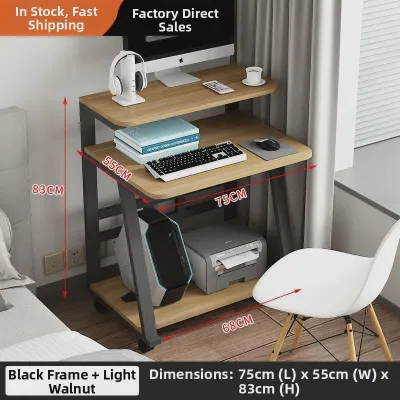
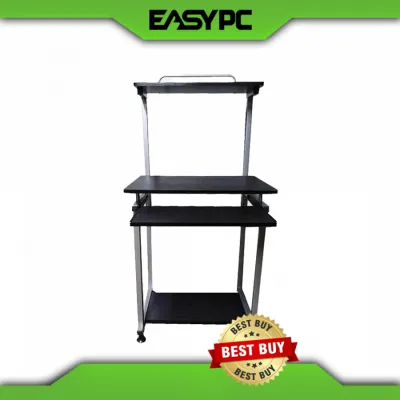
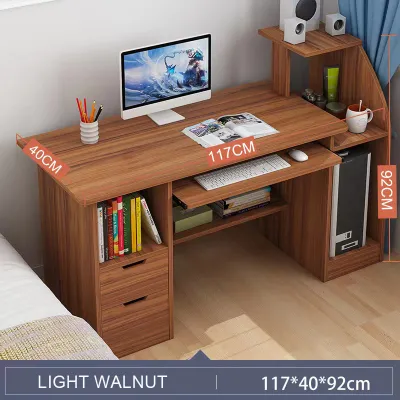
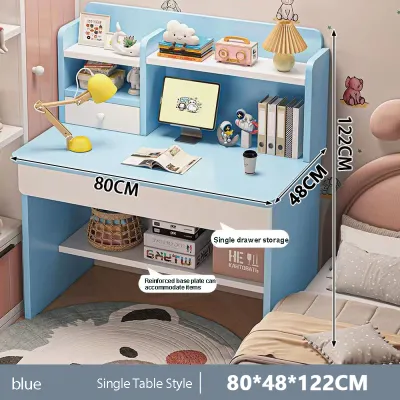
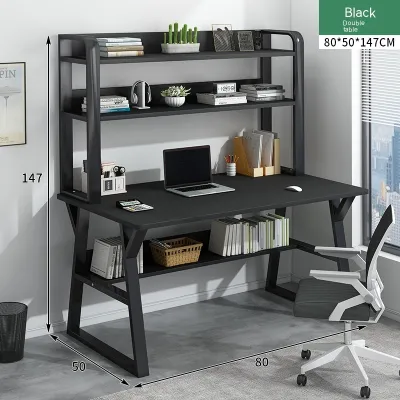
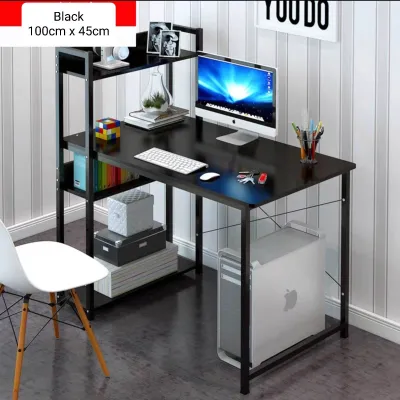
![[HOT]Computer Desk Stand With Printer Double Layers Wooden Monitor Stand Printer Stand Printer Table Rack](https://img.lazcdn.com/g/p/b343e302237943db22866737df29aa57.jpg_400x400q80.jpg_.webp)
Prices are valid at publication and may change. Please refer to the product page for the latest price.

L-shaped desks excel at spatial organization by utilizing corner areas that often go wasted. This design naturally divides your workspace into two distinct zones. You can dedicate the longer side of the “L” to your primary computer tasks, leaving ample room for your monitor and keyboard. The shorter return side becomes a dedicated station for your printer, document trays, and office supplies, keeping the main typing area completely uncluttered.
Linear desks, such as standing and foldable models, force you to arrange your equipment in a single line. To fit a monitor and a printer side-by-side on a straight desk, you generally need a surface width of at least 120 to 150 centimeters. Without this width, the printer will encroach on your mouse pad or block your view of the screen.
Depth is another critical dimension. Many consumer printers require at least 50 to 60 centimeters of depth when their paper feed and output trays are fully extended. On a shallow desk, a printer may overhang the front or back edge, creating a tipping hazard or forcing you to sit uncomfortably close to your monitor.
In tropical climates like the Philippines, high humidity can cause paper stored in open printer trays to absorb moisture and curl, leading to frequent paper jams. Choosing a desk layout that allows you to store paper in a dry, closed drawer nearby—rather than leaving it exposed in the printer—is a practical way to maintain smooth printer operation.
Ergonomics and Accessibility: Reaching Your Printer
An ergonomic workspace minimizes physical strain by keeping frequently used items within easy reach. Ergonomists divide the desk surface into three reach zones: the primary zone (within forearm reach), the secondary zone (within full arm reach), and the tertiary zone (requiring you to bend, stretch, or stand up).
An L-shaped desk keeps your printer in the secondary reach zone. By simply swiveling your office chair 90 degrees, you can load paper, retrieve printed documents, or clear a paper jam without twisting your spine or standing up. This seamless transition is highly beneficial for administrative professionals, teachers, or home business owners who print documents throughout the day.
Standing desks introduce a different dynamic. When you raise the desk to a standing position, the printer rises with it, keeping your documents at chest level. However, if you place a heavy printer on a standing desk, you must ensure the lifting mechanism can handle the weight during height transitions. If you choose to place the printer on a separate, static side table to save desk space, you may find yourself bending down repeatedly to retrieve documents while standing, which disrupts your ergonomic posture.
Foldable desks, due to their compact nature, often force the printer into your primary reach zone. This proximity can crowd your elbows and force your shoulders into an unnatural, cramped position while typing. If you use a foldable desk, it is often best to set the printer on the floor or a nearby shelf during active typing sessions, moving it back to the table only when you need to print.
Stability and Weight Capacity: Handling Printer Vibration
Printers are dynamic machines. The rapid side-to-side movement of an inkjet printhead or the mechanical feeding of paper through a laser printer generates significant lateral kinetic energy. If your desk lacks structural rigidity, this energy translates into noticeable vibration, causing your monitor to wobble and creating an irritating working environment.
Before purchasing any computer table with printer setup, you must calculate the total weight of your equipment. A typical setup might include:
- A desktop monitor or dual-monitor arm (5 to 10 kilograms)
- A computer tower or laptop with a docking station (3 to 12 kilograms)
- An all-in-one inkjet or laser printer (6 to 18 kilograms)
- Books, desk organizers, and personal items (3 to 5 kilograms)
L-shaped desks offer superior stability because they distribute weight across multiple legs and a wide, interconnected frame. The corner joint acts as a natural brace, resisting lateral swaying caused by printer vibrations. This makes them the safest choice for heavy, high-speed office printers.
Motorized standing desks rely on two telescoping legs. When extended to standing heights, the desk’s center of gravity rises, making it more susceptible to wobble. To prevent your monitor from shaking every time you print, look for standing desks with heavy steel frames, dual motors, and thick desktop surfaces. Avoid budget models with thin, single-motor legs if you plan to host a heavy printer on the same surface.
Foldable desks are the most vulnerable to vibration. Their folding hinges and lightweight legs are designed for portability rather than dampening lateral forces. A heavy print job on a folding table can cause the entire surface to shake, which can be distracting and may put unnecessary stress on delicate computer components like mechanical hard drives or loose cable connections.
Decision Framework: Match the Desk to Your Workflow
To finalize your choice, evaluate your daily habits, space constraints, and equipment specifications against the strengths of each desk type.
When to Choose an L-Shaped Desk
- Space Availability: You have a dedicated corner or a spare wall in a permanent home office.
- Equipment Load: You use a multi-monitor setup, a large desktop tower, and a heavy all-in-one printer.
- Workflow: You print documents frequently throughout the day and need immediate, level access to your printer.
- Storage Needs: You require under-desk space for filing cabinets, paper storage, and power protection devices.
When to Choose a Standing Desk
- Space Availability: You have a moderate amount of wall space and prefer a modern, open aesthetic.
- Equipment Load: You use a laptop or a single monitor alongside a compact, lightweight printer.
- Workflow: You prioritize physical movement, alternating between sitting and standing throughout your workday.
- Cable Management: You are willing to organize and secure your cables to accommodate vertical movement.
When to Choose a Foldable Desk
- Space Availability: You work in a shared room, such as a dining area or bedroom, where the desk must be packed away after hours.
- Equipment Load: You use a lightweight laptop and a compact, portable printer.
- Workflow: You print occasionally—perhaps a few pages a week—and do not require a permanent administrative station.
Before making a purchase, verify that your room layout allows for the specific footprint of your chosen desk. Ensure there is enough clearance behind your chair to roll back comfortably, and check that your power outlets can safely support your computer, monitor, printer, and desk motor without overloading your home’s electrical circuits.
Pre-Purchase Checklist: Measuring and Verifying Specs
To avoid delivery headaches and compatibility issues, complete these verification steps before ordering your new desk:
- Measure Your Hardware: Use a tape measure to record the maximum width, depth, and height of your printer with all trays fully extended. Weigh your printer and computer gear to establish your minimum weight capacity requirement.
- Check the Desk Specifications: Read the manufacturer's product manual or label online. Verify the maximum weight capacity, surface depth, and frame material. Look for steel frames and thick, moisture-resistant desktop finishes that can withstand tropical humidity without warping.
- Assess Delivery Access: L-shaped desks and motorized standing desk frames often arrive in large, heavy boxes. Measure your doorways, hallways, and stairwells to ensure you can safely carry the packages to your workspace.
- Plan Your Power Supply: Ensure you have a high-quality surge protector or an uninterruptible power supply (UPS) to protect your computer and printer from local power fluctuations. Confirm that the power cords are long enough to reach your outlets, especially if you choose a standing desk.
Frequently Asked Questions (FAQ)
Can I place my printer on a lower shelf instead of the main desktop?
Yes, placing your printer on a lower shelf or an under-desk cart is an excellent way to free up valuable desktop space and lower the desk’s center of gravity, which improves overall stability. However, this setup has ergonomic trade-offs. Bending down repeatedly to retrieve documents, load paper, or clear paper jams can strain your back over time. If you choose this layout, ensure the shelf has enough vertical clearance for you to open the printer’s scanner lid and fully extend the paper trays.
How do I manage cables for a printer on a standing desk?
Managing cables on a standing desk requires careful planning to prevent cords from snagging or pulling taut when the desk rises. Start by grouping your printer’s power and data cables together using a flexible cable sleeve. Mount a heavy-duty power strip directly to the underside of your desktop so that only one main power cord needs to travel down to the wall outlet. Ensure this main cord has enough slack to reach your outlet comfortably at the desk’s maximum height, and use adhesive cable clips to secure any loose wires away from the desk’s moving joints.
Community discussion
Share your experience or ask a question. Comments are reviewed before publication.