
Selecting the right computer table for desktop setups requires balancing your physical workspace constraints with your daily computing habits. A desktop computer is fundamentally different from a laptop; it features a heavy tower, multiple cables, a dedicated monitor, and separate peripherals that demand a stable, spacious surface. The three most popular configurations—standing, foldable, and L-shaped desks—each serve distinct operational needs. Standing desks prioritize ergonomic movement and long-term health by allowing you to transition between sitting and standing throughout the day. Foldable desks offer maximum spatial flexibility, making them ideal for multi-purpose rooms or temporary setups where space is at a premium. L-shaped desks provide an expansive, zoned workspace that easily accommodates multi-monitor setups and heavy hardware. Finding the perfect match depends on your room’s floor area, the weight of your equipment, and how you interact with your workstation daily.
Evaluating Your Space and Desktop Hardware Requirements
Before browsing online marketplaces or visiting local furniture showrooms, you must conduct a thorough audit of both your physical room and your computer hardware. Start by measuring the exact floor area where you plan to place the desk, keeping in mind that you need at least 80 to 100 centimeters of clearance behind the desk for your office chair to glide comfortably. In many homes, particularly in urban condominiums or shared apartments, space is highly constrained, making it essential to account for baseboards, wall outlets, and door swings. Do not forget to measure the width of your doorways, hallways, and stairwells; a large, fully assembled desk or a heavy flat-pack box must be able to clear these pathways during delivery and installation.
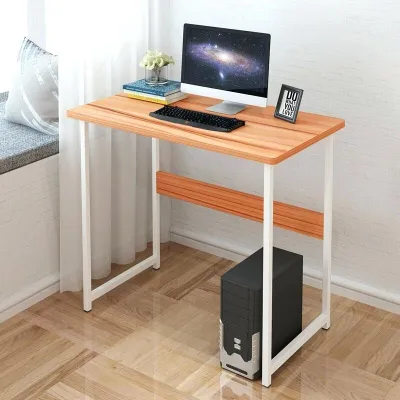
Next, catalog your desktop hardware to determine the required tabletop surface area and weight capacity. A standard desktop setup typically includes a monitor (or multiple screens), a keyboard, a mouse, speakers, and a PC tower, which can collectively weigh anywhere from 15 to over 30 kilograms. Additionally, consider the placement of wall outlets and power distribution. In the Philippines, power fluctuations and sudden outages are common, making an uninterruptible power supply (UPS) an essential safeguard for desktop computers. A typical UPS is heavy and bulky, often adding an extra 5 to 10 kilograms to your setup. You must decide whether this unit will sit on the floor or on the desk, and ensure the desk’s structure can support this concentrated weight alongside your PC tower and monitors. Furthermore, examine your floor surface. Tiled floors, which are highly popular in local homes for their cooling properties, often have uneven grout lines. A desk without adjustable leveling feet will wobble on these surfaces, compromising the safety of your expensive desktop components.
Products mentioned in this guide


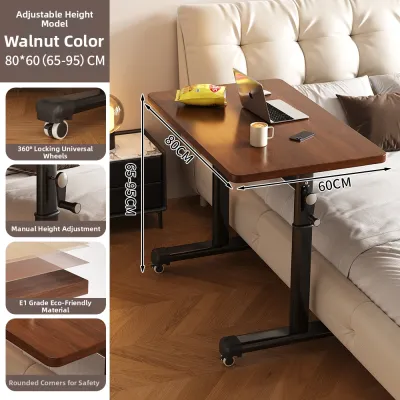
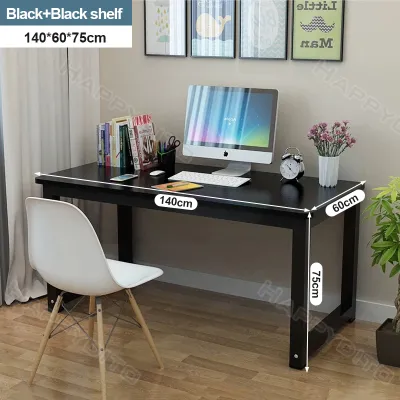
Prices are valid at publication and may change. Please refer to the product page for the latest price.
Standing Desks for Desktop Setups
Standing desks have become a cornerstone of modern ergonomic workspaces, offering a dynamic way to combat the sedentary nature of desk jobs. For desktop computer users, however, transitioning to a height-adjustable desk introduces specific structural and technical challenges that require careful planning. The most critical factor is stability at maximum height. When a standing desk is extended to its highest point, any slight movement can cause monitor wobble, which is highly distracting during typing or gaming. This issue is often amplified on tiled or slightly uneven floors, which are common in local residential builds. To minimize wobble, look for frames constructed from heavy-gauge steel and equipped with leveling feet that can be adjusted to match your floor’s surface.

Cable management is another major hurdle when pairing a standing desk with a desktop computer. Unlike a laptop setup with a single power cord, a desktop PC involves a complex web of cables connecting the monitor, tower, peripherals, and power strip. When the desk rises, these cables must have enough slack to stretch without pulling on ports or tipping over equipment. If you choose to keep your PC tower on the floor, you will need extra-long display and power cables, along with a flexible cable spine or sleeve to keep them organized. Alternatively, mounting the PC tower to the underside of the desktop using a dedicated CPU holder ensures that the computer moves with the desk, keeping the cable runs short and neat, though this significantly increases the load on the desk’s motor.
When exploring standing desks, you will encounter both manual hand-crank and electric height-adjustable models. While manual desks are often more budget-friendly and do not require proximity to a power outlet, adjusting them with a heavy desktop setup can be physically demanding and slow. Electric standing desks, powered by single or dual motors, offer effortless transitions at the press of a button. However, they require a constant power source and introduce electrical components that must be kept away from moisture, which is an important consideration in high-humidity environments. For a heavy desktop setup, a dual-motor electric frame is highly recommended, as it distributes the lifting force more evenly and handles the weight of monitors, mounts, and towers with less strain on the mechanism.
Despite these challenges, the ergonomic benefits of a standing desk are substantial, especially in tropical climates where sitting in a fixed position for hours can lead to discomfort and heat buildup. Alternating between sitting and standing encourages blood circulation, reduces strain on the lower back, and helps maintain focus during long working sessions.
Foldable Desks for Desktop Setups
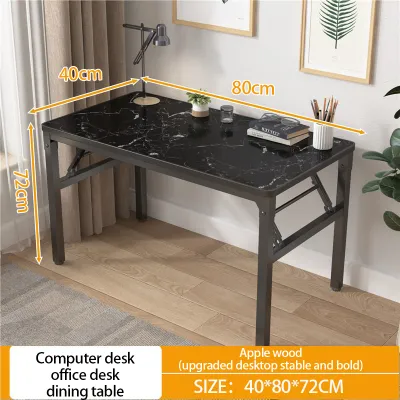
Foldable desks are the ultimate space-saving solution for users who do not have a dedicated home office or those who need to pack away their workspace at the end of the day. In compact living environments, a foldable computer table for desktop setups allows you to transform a corner of your living room or bedroom into a functional workstation and quickly reclaim the floor space when your work is done. These desks are also highly favored by renters who value portability and ease of transport during moves.
However, using a foldable desk for a full desktop computer setup requires a clear understanding of its structural limitations. Folding mechanisms, hinges, and locking pins are inherently more vulnerable to wear and stress than solid, fixed joints. Placing a heavy, high-end PC tower and a large monitor on a folding table can push the unit close to its structural limits. To ensure safety, you must check the manufacturer’s rated weight capacity and avoid overloading the center of the table. It is generally safer to place the heavy PC tower on the floor or on a small, dedicated side stand, leaving only the monitor, keyboard, and mouse on the foldable surface.
The materials used in foldable desks also play a critical role in their long-term viability. Many entry-level foldable tables feature thin particle board or molded plastic tops supported by hollow metal legs. Under the constant, static load of a heavy monitor stand and a PC tower, these materials can sag or warp over time. To prevent this, look for foldable desks that feature a thick engineered wood or solid wood top reinforced with a steel support frame underneath. This structural reinforcement helps distribute the weight more evenly across the folding legs, reducing the risk of sudden collapse or permanent warping.
Surface area is another trade-off with foldable designs. To remain portable and easy to store, foldable desks typically feature shallower depths, often ranging from 40 to 50 centimeters. This shallow depth places the monitor very close to your eyes, which can cause eye strain over long periods, and leaves minimal room for your keyboard, mouse, and wrists. If you opt for a foldable desk, look for models with reinforced steel frames, secure locking mechanisms, and a tabletop thickness that can support your monitor stand without flexing.
L-Shaped Desks for Desktop Setups
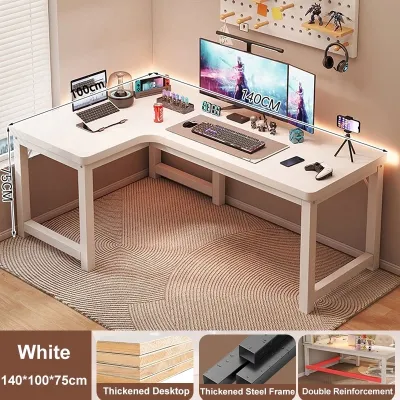
For power users, creative professionals, and gamers who require an expansive workspace, the L-shaped desk is often the most practical choice. The primary advantage of an L-shaped configuration is its ability to maximize corner space, turning an underutilized part of a room into a highly productive workstation. This layout provides a vast amount of surface area, allowing you to set up multiple monitors, large studio speakers, and a heavy PC tower without feeling cramped.
The unique geometry of an L-shaped desk enables a highly efficient zoning strategy. You can dedicate the primary side of the desk to your desktop computer setup, keeping your screen, keyboard, and mouse perfectly aligned for ergonomic comfort. The secondary side, or the return, can then be used for offline tasks such as writing, sketching, reviewing physical documents, or housing secondary equipment like a printer, scanner, or laptop. This physical separation of tasks helps maintain mental focus and keeps your primary computer area free of clutter.
Another environmental factor to consider with L-shaped desks is airflow and ventilation. Because these desks are designed to fit snugly into corners, they can restrict natural airflow, leading to heat buildup around your PC tower. In tropical climates, keeping your computer cool is vital for maintaining performance and longevity. When positioning an L-shaped desk, leave a gap of at least 5 to 10 centimeters between the desk edges and the walls. This small clearance allows air to circulate freely, helping to dissipate the heat exhausted by your PC tower and UPS unit.
However, L-shaped desks have a massive physical footprint and are not suitable for small or narrow rooms. They are heavy, difficult to move once assembled, and require a permanent commitment to a specific corner of your room. When purchasing an L-shaped desk, it is crucial to verify the assembly configuration. Some models feature a fixed left- or right-hand return, while others offer a reversible design that allows you to assemble the longer side on either hand. Make sure to measure your room carefully to ensure the desk does not block windows, doors, or built-in closets.
Side-by-Side Comparison of Desk Configurations
To help you weigh the practical differences between these three desk types, the following comparison matrix highlights their performance across key operational categories.
| Feature | Standing Desk | Foldable Desk | L-Shaped Desk |
|---|---|---|---|
| Space Efficiency | Moderate (requires dedicated floor space but has a standard footprint) | High (can be folded and stored away when not in use) | Low (requires a large, permanent corner or wall area) |
| Weight Capacity | Moderate to High (typically supports 70 to 120 kg depending on motor) | Low to Moderate (typically supports 20 to 50 kg; check joints) | High (solid frame often supports 100 kg or more across the surface) |
| Monitor Stability | Variable (can wobble at maximum height; requires a sturdy frame) | Low to Moderate (hinges and folding legs may flex under movement) | High (solid, multi-leg construction offers excellent stability) |
| Cable Management | Complex (requires cable sleeves, trays, and slack for height changes) | Simple (minimal cables can be routed down the legs; temporary setup) | Moderate (ample space under the desk to hide cables and power strips) |
| Ideal User Profile | Ergonomics-focused users who work long hours and change postures | Renters, students, or users with severe space constraints | Multi-monitor users, gamers, and professionals needing zoned space |
Always verify the exact dimensions, weight limits, and assembly instructions on the manufacturer’s product label or specification sheet before purchasing, as individual models can vary significantly.
Decision Framework: Which Desk Should You Choose?
To make your final decision, evaluate your setup against the following conditional guidelines:
Choose a Standing Desk if:
- Your primary goal is to improve your posture and reduce physical fatigue by alternating between sitting and standing.
- You have a dedicated home office space where the desk can remain permanently plugged into a power outlet.
- You are willing to invest time and effort into routing cables properly to accommodate height transitions.
Choose a Foldable Desk if:
- You live in a compact apartment or shared room where floor space must be reclaimed at the end of the day.
- Your desktop setup is relatively lightweight, or you are willing to place your heavy PC tower on the floor.
- You need a budget-friendly, highly portable solution that requires little to no complex assembly.
Choose an L-Shaped Desk if:
- You use a multi-monitor setup, a heavy desktop tower, and multiple peripherals that require a large, stable surface.
- You have an empty corner in a spacious room that can accommodate a permanent, heavy furniture piece.
- You benefit from separating your computer work from other manual or administrative tasks.
Before finalizing your purchase, always verify your room’s dimensions, check that the desk can clear your doorways during delivery, and confirm that the manufacturer’s rated weight capacity safely exceeds the total weight of your desktop hardware.
Frequently Asked Questions (FAQ)
Can I put a heavy desktop PC tower on a foldable desk?
Yes, but you must exercise extreme caution and verify the manufacturer’s explicit weight capacity before doing so. Many foldable desks are designed for lightweight laptops and may flex, wobble, or fail under the concentrated weight of a heavy desktop tower, monitor, and accessories. If you must use a foldable desk, it is highly recommended to place the PC tower on the floor or on a separate, sturdy CPU stand. This keeps the center of gravity low, prevents the desk from tipping, and preserves the limited tabletop surface area for your monitor, keyboard, and mouse.
How do I manage cables on a standing desk with a desktop computer?
Managing cables on a standing desk requires planning for movement. Start by grouping your cables using flexible cable sleeves or spiral wraps to prevent tangling. Mount a heavy-duty power strip to the underside of the desktop using screws or strong adhesive tape, so that only one main power cable needs to travel from the desk to the wall outlet. Ensure this main cable has enough slack to reach the outlet comfortably when the desk is fully extended to its maximum height. If your PC tower sits on the floor, use extra-long display and power cables to prevent them from pulling or disconnecting during height adjustments.
Community discussion
Share your experience or ask a question. Comments are reviewed before publication.