
To successfully transition a desktop PC setup to a standing desk, you must prioritize structural stability, generous surface depth, and robust weight capacity. Unlike a simple laptop setup, a desktop rig involves a heavy computer tower, multiple monitors, and a complex web of power and data cables. Choosing the wrong computer table for a desktop can lead to distracting monitor wobble, strained cables, or even motor failure. By focusing on verified load limits, dual-motor lifting systems, and integrated cable management, you can build a reliable workstation that supports your hardware safely at any height.
When evaluating different models, it is easy to get distracted by aesthetic extras or touch-screen controllers. However, the core utility of your desk depends on how well it handles the physical demands of your specific hardware. A desktop computer setup requires a systematic approach to weight distribution, surface durability, and mechanical reliability. Understanding these technical specifications before making a purchase will save you from costly compatibility issues down the road.
Weight Capacity and Stability for Heavy Towers
Before choosing a standing desk, you must calculate the total weight of your entire desktop setup. This calculation should include the computer tower, all monitors, mounting arms, external speakers, keyboard, mouse, and any desk accessories. A standard mid-tower PC can easily weigh between 10 to 20 kilograms, while high-end gaming rigs with liquid cooling or tempered glass panels can weigh significantly more. Compare your total calculated weight against the manufacturer’s rated weight capacity, ensuring you leave a generous safety margin.
Products mentioned in this guide


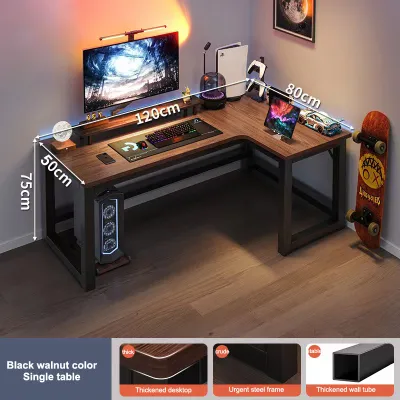
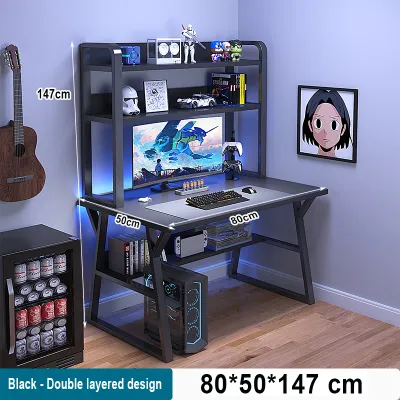
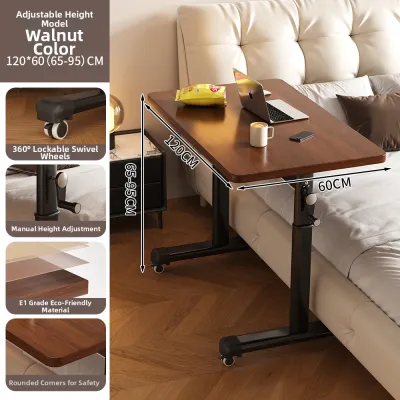
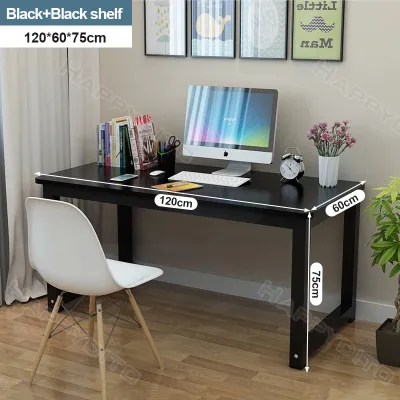

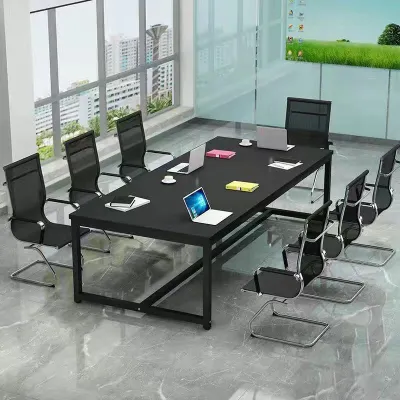
Prices are valid at publication and may change. Please refer to the product page for the latest price.
The structural stability of a standing desk is determined by its frame construction, leg design, and joint reinforcement. Look for frames made from heavy-gauge steel, which provides the necessary rigidity to prevent lateral sway. Leg columns that are wider at the base (often referred to as an upright or inverted orientation) offer a more stable foundation. Additionally, three-stage lifting columns generally provide superior stability and a wider height range compared to two-stage columns, as the overlapping segments minimize play when extended.
At maximum standing height, even minor vibrations from typing or mouse movements can cause noticeable monitor shake. To minimize this lateral wobble, inspect the desk’s top support brackets and the connection points between the legs and the feet. Some heavy-duty frames feature a physical crossbar running between the legs, which dramatically reduces side-to-side movement. If you prefer a cleaner look without a crossbar, ensure the frame utilizes reinforced wedge designs or heavy steel top plates to maintain rigidity.
Uneven flooring can severely compromise the stability of a heavy desktop setup, causing the frame to rock and strain the lifting motors. Ensure the desk you select includes adjustable leveling feet on the bottom of the steel legs. These threaded glides allow you to compensate for uneven tiles, terrazzo, or wooden floorboards, which are common in many homes. Properly leveling the desk ensures that the weight of your PC tower and monitors is distributed evenly across both lifting columns, preventing premature wear on the internal gears.
Surface Dimensions and Layout for Multiple Monitors
Selecting the right surface dimensions is critical for maintaining a comfortable viewing distance and organizing your peripherals. For a desktop PC setup, desk depth is often more important than width. A depth of at least 70 to 80 centimeters is highly recommended to accommodate large monitors while leaving enough room for a full-sized keyboard and mouse pad. If your desk is too shallow, your screens will sit too close to your eyes, leading to eye strain and a cramped working area.

If you utilize a dual or triple monitor configuration, you must measure the total span of your screens to choose an appropriate desk width. A width of 140 to 180 centimeters is generally ideal for multi-monitor setups, providing ample space for the displays without crowding the desktop. When using monitor arms, verify that the desk surface is compatible with C-clamps or grommet mounts. The edge of the desktop must be thick and sturdy enough to support the concentrated weight of the clamp and the extended monitors without cracking or bending.
In humid tropical climates, such as in the Philippines, the choice of surface material and finish is crucial for long-term durability. High humidity and sweat can cause cheap, poorly sealed particle board to swell, warp, or delaminate over time. Look for desktop surfaces finished with high-pressure laminate (HPL) or powder-coated medium-density fiberboard (MDF) with seamless edge banding. These finishes provide excellent moisture resistance, prevent water damage from condensation rings, and are easy to wipe clean.
Edge profiles also play a significant role in daily comfort during long typing or gaming sessions. A desktop with a sharp, 90-degree front edge can press uncomfortably into your forearms, restricting blood flow. Consider surfaces with beveled, chamfered, or gently curved front edges that reduce pressure points on your wrists. If the primary desktop surface area is still insufficient for your hardware, look for modular frames that allow you to upgrade to a larger desktop surface in the future without needing to buy an entirely new frame.
Motor Systems and Adjustment Mechanics
The lifting mechanism is the heart of any standing desk, and its performance is critical when lifting a heavy desktop setup. Standing desks generally feature either single-motor or dual-motor systems. Single-motor desks rely on a hex rod to transfer power from one leg to the other, which can result in slower lifting speeds and uneven weight distribution under heavy loads. For a full desktop rig, a dual-motor system is highly recommended, as each leg has its own dedicated motor, providing smoother, quieter, and more balanced lifting.
When comparing motor systems, check the manufacturer’s specifications for lifting speed and noise levels. A high-quality dual-motor system should lift at a speed of 30 to 40 millimeters per second, even when loaded near its capacity. The noise level during operation should ideally remain below 50 decibels, ensuring that height transitions do not disrupt video calls or focus. Additionally, review the warranty terms specifically for the electronic components, including the motors, control box, and keypad, as these are the parts most vulnerable to wear.
An essential safety feature for any motorized desk supporting expensive computer equipment is anti-collision technology. This system uses built-in sensors to detect sudden resistance or changes in angle when the desk is moving up or down. If the desk hits an obstacle, such as an office chair armrest, a filing cabinet, or a window sill, it will immediately stop and reverse direction. This prevents catastrophic damage to your PC tower, monitors, and the desk’s motor system.
Advanced control keypads offer programmable memory presets, allowing you to save your exact sitting and standing heights. This feature is incredibly convenient for desktop setups, as it eliminates the need to manually adjust the height every time you transition. Look for keypads with a soft start and stop feature, which ensures the desk accelerates and decelerates smoothly. This gentle transition prevents sudden jerks that could cause top-heavy monitors to wobble or loose items to slide off the desk.
Cable Management and Power Routing
Managing cables is one of the greatest challenges when setting up a desktop PC on a standing desk. Unlike a laptop, which has a single power cord, a desktop setup involves multiple power cables, display cords, and peripheral wires that must move dynamically as the desk rises. Without proper planning, cables can become taut, pulling ports out of your computer tower or even dragging expensive equipment off the desk surface.
To prevent cable strain, look for standing desks that feature integrated cable management solutions. Under-desk cable trays or steel wire baskets are essential for housing heavy power strips, large power bricks, and excess cable slack. These trays keep the bulk of your wiring off the floor and mounted securely to the underside of the desk frame. Grommet holes in the desktop surface are also highly beneficial, allowing you to route monitor and keyboard cables directly beneath the desk rather than draping them over the back edge.
When organizing your power routing, mount a heavy-duty power strip directly to the underside of the desktop or within the cable tray. This configuration means that only one main power cable needs to run from the desk down to the wall outlet. All of your individual components—the PC tower, monitors, and speakers—plug directly into the under-desk power strip, moving up and down with the desk. This setup drastically reduces the number of dangling wires and minimizes the risk of cable snagging.
Before finalizing your setup, perform a dry run by raising the desk to its absolute maximum height while observing the cables. Ensure that the main power cable running to the wall outlet, as well as any ethernet or audio lines, has sufficient slack at the highest setting. Use cable spines, snake guides, or hook-and-loop fasteners to bundle these moving cables neatly, guiding them along one of the desk legs to prevent them from getting caught in the frame’s moving parts.
Evaluation Checklist for Desktop-Compatible Desks
Before purchasing a computer table for a desktop setup, use this structured checklist to verify that the desk meets all your technical and physical requirements:
- Verify Weight Capacity: Ensure the desk's rated weight limit exceeds your calculated setup weight by at least 20% to 30% to prevent motor strain.
- Check Height Range: Confirm that the minimum and maximum height limits align with your ergonomic sitting and standing elbow heights.
- Assess Surface Depth: Ensure the desktop depth is at least 70 to 80 centimeters to maintain a safe viewing distance from large monitors.
- Inspect Material Finish: Look for moisture-resistant finishes like high-pressure laminate (HPL) to withstand tropical humidity and sweat.
- Confirm Motor Type: Prioritize dual-motor systems for smoother lifting and better weight distribution of heavy PC towers.
- Look for Anti-Collision: Ensure the control system includes active anti-collision sensors to protect your expensive hardware.
- Evaluate Cable Management: Check for built-in grommets, under-desk trays, or mounting points to secure power strips and cords.
- Review Delivery and Assembly: Verify the shipping weight and package dimensions, ensuring the heavy steel frame can fit through your doorways, corridors, or residential lifts.
Frequently Asked Questions (FAQ)
Should I Place My Desktop Tower on the Floor or the Desk?
Placing your computer tower on the desk surface is generally the safest option for a standing desk setup. When the tower sits on the desktop, all the cables connecting the PC to your monitors, keyboard, and mouse remain stationary relative to each other, eliminating cable tension during height adjustments. However, this configuration requires a desk with a high weight capacity and a larger surface area to accommodate the tower’s footprint.
If you prefer to keep your desk surface clear, placing the tower on the floor is possible but requires careful planning. You must use extra-long display and power cables to ensure they do not stretch or unplug when the desk is raised to its maximum height. Additionally, placing a PC directly on the floor exposes it to more dust, pet hair, and floor-level humidity, which can clog fans and restrict airflow. A mobile floor stand with wheels or an under-desk CPU mount can help elevate the tower slightly, protecting it from dust while allowing it to move with the desk.
Do I Need a Keyboard Tray for a Desktop Setup?
Whether you need a keyboard tray depends on your desk’s depth and your personal ergonomic preferences. A keyboard tray can free up valuable desktop surface area, allowing you to push your monitors further back, which is highly beneficial if you use large or multiple screens. It also allows you to position your keyboard and mouse slightly lower than the desktop surface, which can help maintain a natural, relaxed angle for your wrists and shoulders.
However, add-on keyboard trays can introduce stability issues to a standing desk setup. Many clamp-on trays tend to bounce or sag when typing, especially if you use a heavy mechanical keyboard. If you decide to use a keyboard tray, ensure it is constructed from sturdy materials with a robust mounting mechanism. Verify that the tray’s weight capacity can support your typing pressure and that it does not interfere with the desk’s under-frame support bars or your knees when sitting.

Community discussion
Share your experience or ask a question. Comments are reviewed before publication.