
Finding the right mini table for your printer is not just about matching the width of the machine’s plastic base. To choose the correct size, you must account for the printer’s fully extended paper trays, the clearance needed to open maintenance doors, and the structural capacity to handle rapid side-to-side printhead vibrations. A table that is too small can cause paper jams, overheating, or even physical damage if the machine wobbles off the edge during a heavy print job.
By taking precise measurements of your equipment and evaluating your workspace, you can select a stable, space-efficient surface that keeps your home office organized and your printer running smoothly. This guide breaks down the essential steps to determine the exact dimensions and weight capacity your setup requires.
Measure Your Printer and Its Operating Footprint
To determine the minimum surface area your table needs, start by measuring the static base footprint of your printer. Use a tape measure to record the exact width, depth, and height of the unit when all trays are closed and folded away. This represents the absolute minimum space the printer occupies when idle, but it is rarely the actual size you need for daily operation.
Products mentioned in this guide
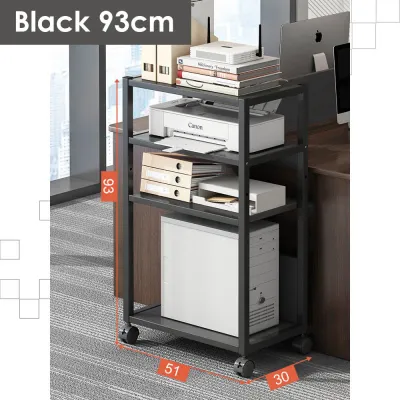
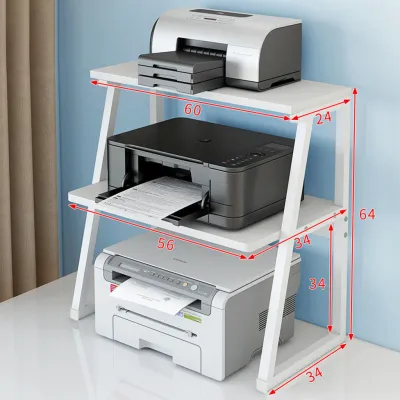
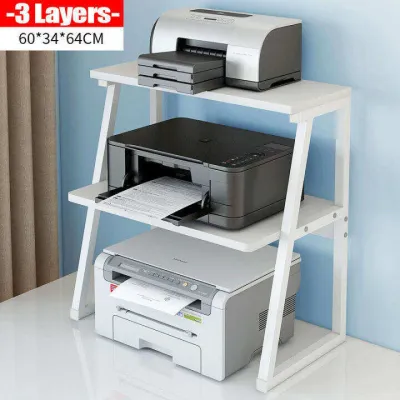
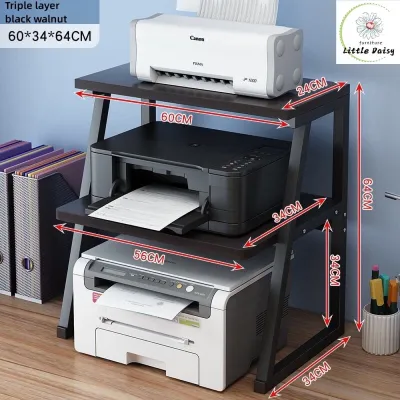
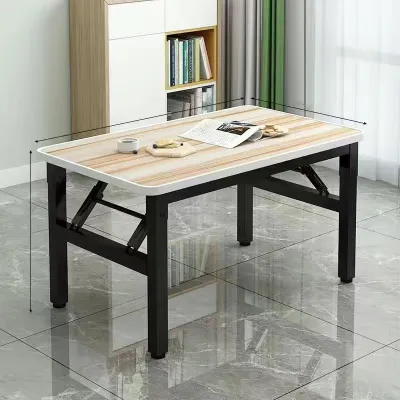
Prices are valid at publication and may change. Please refer to the product page for the latest price.
Next, measure the operational clearance. Most inkjet and laser printers require significantly more space when active. Extend the input and output paper trays completely, and measure the new depth and height. If your printer is an all-in-one model with a flatbed scanner on top, open the scanner lid fully and measure the height from the bottom of the printer to the tip of the raised lid. You must also account for the space needed to open front or side panels for replacing ink cartridges, toner, or clearing paper jams.
Ventilation is another critical factor, particularly in warm, humid tropical environments where heat buildup can shorten the lifespan of electronic components. Check your printer’s manual for the manufacturer’s recommended clearance around exhaust vents, which is typically several inches on the sides and rear. Blocking these vents by placing the printer flush against a wall or inside a tight cabinet can cause the internal motors and power supplies to overheat, leading to premature hardware failure.
Assess Your Available Space and Placement Options
Once you have the operational dimensions of your printer, evaluate where the mini table will stand within your room. Decide whether you need a desktop riser that sits on your existing work surface or a freestanding utility table that occupies its own floor space. In compact living spaces, such as urban apartments or condominiums, a freestanding mini table can free up valuable desk space for your computer, keyboard, and documents.

When planning the layout, ensure the table does not obstruct walkways or interfere with your office chair’s range of motion. A printer table placed too close to a doorway or a high-traffic path can become a tripping hazard or get bumped constantly, which can disrupt active print jobs. Measure the clearance around your desk to ensure you can roll your chair back and stand up comfortably without colliding with the printer stand.
Cable routing and power access also dictate where the table can go. Printers require reliable power connections and, in some cases, direct USB or Ethernet cables to your computer. Factor in an extra two to three inches of depth behind the table to accommodate thick power cords and data cables without bending them sharply against the wall. Ensure the table is positioned close enough to a wall outlet or a surge protector so that cables do not stretch across walkways, creating safety hazards.
Match Table Dimensions and Weight Capacity
With your printer’s operational measurements and room layout in hand, you can now select a table with the appropriate physical specifications. The tabletop surface area should ideally be at least two to three inches wider and deeper than the printer’s fully expanded operational footprint. This safety margin prevents the printer’s rubber feet from sitting too close to the edges, reducing the risk of the machine sliding off during heavy use.
Weight capacity is a vital safety metric that must not be overlooked. Compare your printer’s dry weight against the table’s certified load rating, but remember to account for the weight of a full ream of paper, high-yield ink or toner cartridges, and any additional office supplies you plan to store on lower shelves. A standard home printer might weigh only five to ten kilograms, but larger office-grade laser printers can easily exceed twenty kilograms. Choose a table with a weight capacity that comfortably exceeds this total to prevent the frame from bowing or sagging over time.
Consider the height of the table from an ergonomic perspective. If you frequently scan documents, load paper, or check the status screen, the table should be at least waist-high to prevent constant bending and back strain. Conversely, if the table is too high, lifting heavy paper reams or reaching the scanner bed can strain your shoulders.
Stability is the final piece of the dimensional puzzle. Printers, especially inkjet models, move their printheads rapidly back and forth, creating significant lateral forces. A flimsy table will sway and wobble during printing, which can lead to misaligned prints, paper feed errors, or excessive noise. Look for tables featuring robust construction, such as steel frames, cross-bracing bars, or adjustable leveling feet that can compensate for uneven flooring.
Common Sizing Mistakes to Avoid
One of the most frequent errors when choosing a mini printer table is ignoring the dynamic weight and movement of the machine. A table might support a printer perfectly well when it is turned off, but once a high-speed print job begins, the kinetic energy can cause a lightweight table to shake violently. This vibration not only degrades print quality but can also loosen internal printer components over time.
Another common mistake is failing to account for the physical environment and humidity. In tropical climates, high humidity can make paper damp, causing it to stick together and increase the likelihood of paper jams. If your printer table is tucked away in a dark, unventilated corner with poor airflow, this moisture issue can worsen. Ensure your table is placed in an area with decent air circulation to keep both the paper and the printer dry.
Finally, avoid blocking access to the printer’s essential components. Placing a table too close to a wall or wedging it tightly between other furniture pieces might save floor space, but it makes routine maintenance incredibly frustrating. If you have to pull the entire table out or lift a heavy printer just to clear a paper jam or swap an ink cartridge, the setup is inefficient. Always leave enough clearance around the table for easy physical access.
Frequently Asked Questions (FAQ)
Can I use a wall-mounted shelf instead of a mini table?
Using a wall-mounted shelf is a viable space-saving alternative, but it requires careful installation and structural verification. You must ensure that the shelf brackets are anchored directly into wall studs or solid masonry, as standard drywall anchors cannot reliably support the weight and continuous vibration of an active printer. Additionally, choose heavy-duty brackets rated for at least double the printer’s weight to handle the dynamic forces of the printhead. Keep in mind that wall shelves can transfer operational noise and vibrations directly into the wall structure, which might be disruptive to adjacent rooms.
Does the table material affect printer performance?
Yes, the material of the table can influence both the stability and the longevity of your printer. Dense materials like solid wood, thick engineered wood, or metal frames provide the mass necessary to absorb vibrations, resulting in quieter operation and fewer paper alignment issues. The surface finish should be smooth enough for the printer’s rubber feet to grip securely, preventing the machine from shifting during high-speed printing. Furthermore, choose a material with a moisture-resistant finish, such as sealed laminate or powder-coated metal, to protect the table from accidental ink spills and the high humidity levels common in tropical regions.

Community discussion
Share your experience or ask a question. Comments are reviewed before publication.